

The average person spends nearly two weeks per year searching for misplaced documents. That missing insurance policy, last year’s tax return, or loan agreement can trigger unnecessary stress — and even cost you money. Going paperless isn’t just about saving trees; it’s about reclaiming time, reducing anxiety, and building a financial system that works for you, not against you.
A secure digital organization system does more than scan and file. It protects your sensitive data, automates reminders, and gives you instant access to what matters most — whether you’re at home, on the road, or facing an emergency. In this guide, we’ll cover everything you need to create a paperless life that’s both efficient and bulletproof.
Table of Contents
Why Going Paperless Transforms Your Financial Life
Paper clutter is a silent drain on productivity. Bills get buried, receipts fade, and important deadlines slip through the cracks. When you shift to digital, you gain three immediate superpowers:
- Speed: Search for any document in seconds.
- Security: Encrypt and back up files so they survive fire, flood, or theft.
- Peace of mind: Know exactly where everything lives, from your mortgage to your medical records.
A well-organized digital system also supports better financial decisions. When you can see your entire financial picture at a glance — as recommended in Creating a Simple Personal Finance Dashboard — you’re more likely to stay on track with goals.
The Foundation: Choose Your Digital Vault
Not all storage is equal. You need a secure digital vault — a place where files are encrypted at rest and in transit, accessible only by you and trusted designees. Consider these layers:
- Cloud storage with client-side encryption (e.g., Tresorit, Sync.com)
- Local encrypted drives for offline copies
- Password manager for login credentials (see Password Managers, Digital Vaults, and Emergency Access)
Pro tip: Never store sensitive financial documents on an unencrypted cloud folder. Use a dedicated vault with zero-knowledge architecture.
What to Digitize (And What to Shred)
Before you scan everything, know what truly matters. Not every receipt needs permanent storage. Follow the guidelines in What Financial Documents to Keep, Where, and for How Long? and prioritize these categories:
Keep forever (digitally)
- Tax returns and supporting documents (7+ years)
- Home purchase and improvement records
- Marriage, birth, and death certificates
- Legal contracts and wills
- Insurance policies (current + prior year)
Keep 1–7 years
- Bank and credit card statements
- Investment trade confirmations
- Pay stubs (until reconciled with W-2)
- Medical bills and receipts (for HSA/FSA)
Shred after one month
- ATM receipts
- Grocery store receipts
- Utility bills (once paid and recorded)
Building Your Digital Filing System
A simple, logical folder structure prevents overwhelm. Avoid nested chaos — aim for no more than three levels deep.
Suggested top-level folders:
- 01_Financial (banking, investments, loans)
- 02_Taxes (annual returns, W-2s, deductions)
- 03_Insurance (health, auto, life, home)
- 04_Property (home, vehicles, valuables)
- 05_Medical (records, prescriptions, bills)
- 06_Education (degrees, certifications)
- 07_Legal (wills, powers of attorney, contracts)
- 08_Recurring (subscriptions, memberships)
Inside each folder, use naming conventions like YYYY-MM-DD_Description.pdf. This makes sorting and searching effortless — especially when combined with Automating Reminders for Bills, Renewals, and Deadlines.
Secure Scanning and Naming Best Practices
Invest in a document scanner or use a high-quality mobile app. Most smartphones can produce excellent 300 DPI scans. Keep these rules in mind:
- Scan in PDF/A format (archival standard)
- Use OCR (optical character recognition) so text is searchable
- Name files consistently:
2025-01-15_Chase_Statement.pdf - Add tags like
#tax2025or#auto
For physical originals you decide to keep (e.g., birth certificates), store them in a fireproof safe and note their location in your digital vault.
Protecting Your Digital Life: Backup + Encryption
A single hard drive crash can erase years of organization. Follow the 3-2-1 backup rule:
- 3 copies of your data
- 2 different media types (cloud + external drive)
- 1 copy stored off-site
Encrypt all backups. Use AES-256 encryption on your local drive and ensure your cloud provider supports zero-knowledge encryption. For extra safety, create a Grab-and-go Financial Kit for Emergencies — a USB drive with essential documents, also encrypted.
Tools to Automate the Paperless Workflow
Automation removes friction. Instead of manually filing every receipt, set up these systems:
- Expense tracking apps: Link bank accounts to auto-categorize spending (e.g., Mint, YNAB)
- Digital receipt capture: Use apps like Receipt Bank or Expensify
- Bill pay automation: Schedule payments and store confirmations in your vault
- Calendar reminders: Renew insurance, check credit reports, review subscriptions
Pair these habits with Monthly and Quarterly Money Review Rituals to keep your system current.
The Psychology of an Organized System
Let’s be honest: going paperless requires mindset shift, not just tools. The clutter on your desk often mirrors mental clutter. Two books that address this beautifully:

Rich Dad Poor Dad by Robert Kiyosaki teaches you to see money as a system — and organization as a prerequisite for wealth. It’s not just about moving paper to pixels; it’s about building a framework that supports your financial growth. This bestseller has a 4.7-star rating and has helped millions rethink their relationship with money.
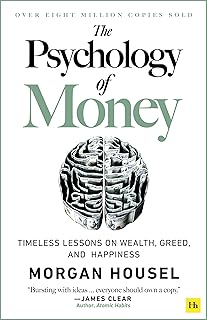
The Psychology of Money by Morgan Housel dives into why we behave the way we do with finances. An organized system reduces decision fatigue, which Housel argues is key to long-term wealth. With a 4.7 rating, this book is a powerful companion to any paperless journey.
Both books reinforce the idea that your system must serve your psychology, not the other way around.
Comparison Table
| Feature | Rich Dad Poor Dad | The Psychology of Money |
|---|---|---|
| Author | Robert Kiyosaki | Morgan Housel |
| Price | $9.31 | $10.99 |
| Rating | 4.7 ⭐ | 4.7 ⭐ |
| Focus | Mindset, investing, asset building | Behavioral finance, decision-making |
| Best for | Those wanting a new money paradigm | Those wanting to understand their own money habits |
| Buy at Amazon | |
|
Avoiding Common Paperless Pitfalls
- Over-digitizing: Don’t scan junk mail. Be selective.
- No naming convention: Chaos scales fast. Stick to your system.
- Skipping encryption: A hacked vault is worse than a lost folder.
- Forgetting shared access: Your family needs to know where to find critical documents. Consider creating a Financial Love Letter or Life Binder for Your Family.
- Not reviewing regularly: Schedule a quarterly cleanup to delete expired documents (e.g., old warranties, canceled policies).
The Paperless Life is a Calmer Life
Going paperless isn’t a one-time project — it’s a lifestyle upgrade. Start small: pick one drawer, scan it, shred it, and feel the relief. Then expand to your entire home office and digital world. In a year, you’ll wonder how you ever managed with piles of paper.
Remember to secure your digital vault, back up everything, and keep your mindset aligned with your goals. Books like Rich Dad Poor Dad and The Psychology of Money can guide you through the mental side of financial organization — because the best system in the world won’t work if you don’t trust it.
Take the first step today. Your future self will thank you.
Frequently Asked Questions
How do I securely dispose of original paper documents after scanning?
Use a cross-cut shredder. For highly sensitive documents (SSN cards, tax records), consider a professional shredding service. Keep originals only if required by law (e.g., birth certificates).
What if I lose my digital vault password?
Store your master password in a password manager, and give emergency access to a trusted person via a secure method. See Password Managers, Digital Vaults, and Emergency Access.
Can I use free cloud storage for financial documents?
Free services like Google Drive lack client-side encryption. Use them only for non-sensitive items (e.g., manuals). For financial papers, invest in a zero-knowledge vault.
How long does it take to go fully paperless?
Most people need 2–4 hours for a single home office, plus recurring 30-minute monthly reviews. The initial effort pays off in countless hours saved later.
What’s the best file format for scanned documents?
PDF/A with embedded OCR. It’s searchable and future-proof across operating systems.